
TP Link TD-W8960ND
CONFIGURING TP-LINK TD-W8960ND
SETTING UP YOUR KIWI INTERNET CONNECTION
1. Download firmware
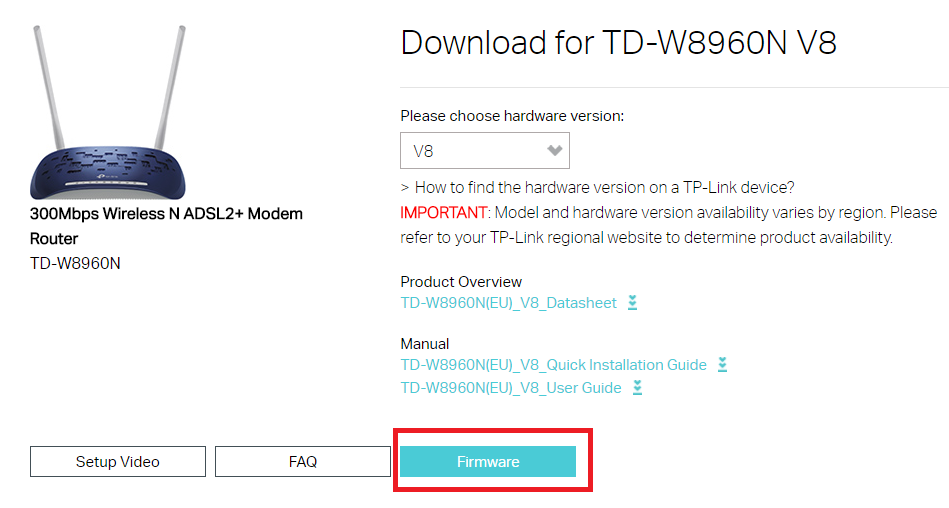
Download the firmware by clicking the link
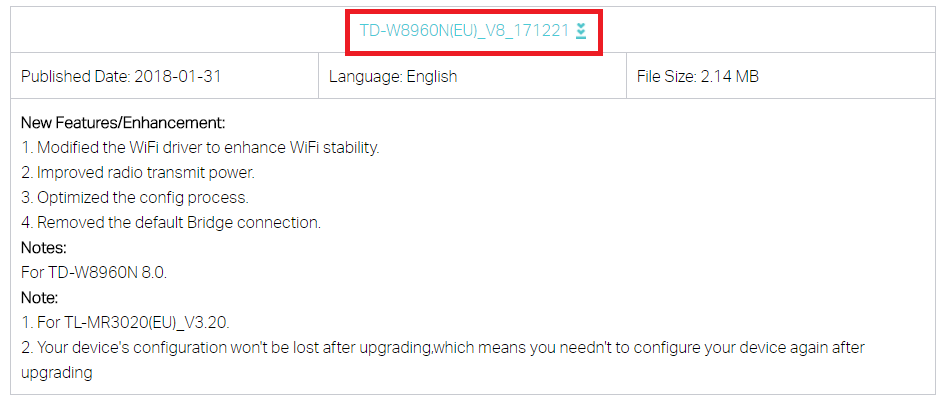
2. Extract and run
Extract the file
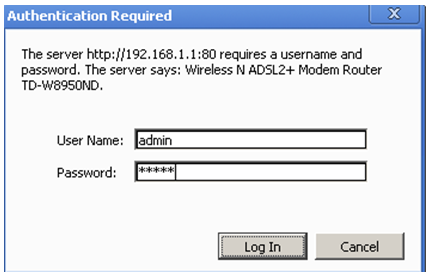
3. Enter TP-Link’s IP address into your web web-browser IP number (192.168.1.1)
Log in: Username: admin Password: admin
4. Select Management from the side bar
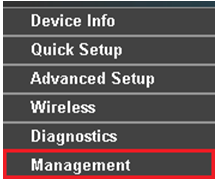
5. Select Upgrade Firmware from the sidebar, select Choose File and select the extracted firmware and click Update Firmware.
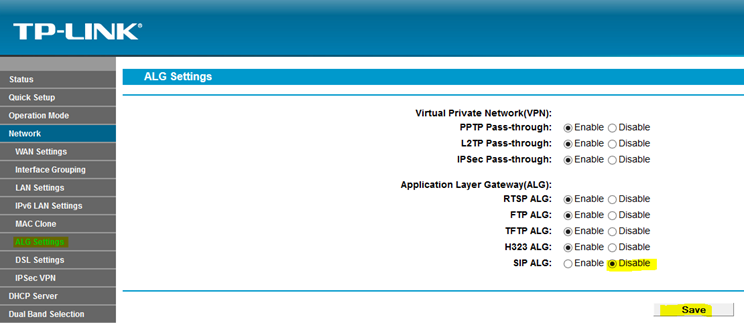
CONFIGURING TP-LINK TD-W8960ND
1. Enter TP-Link’s IP address into your web web-browser IP number (192.168.1.1)
Log in: Username: admin Password: admin
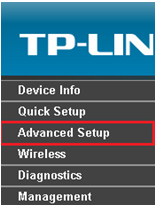
2. Click ‘Advanced Setup’ on the sidebar.
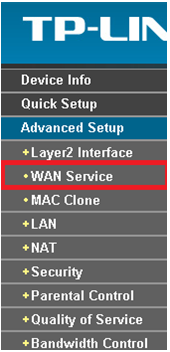
3. Click WAN Service
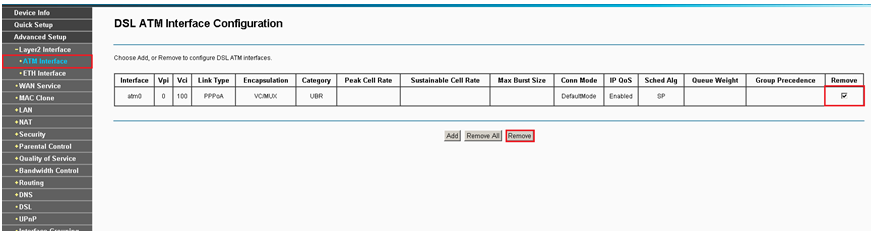
4. Click the remove box and select Remove.

5. Select ATM Interface from the sidebar and also remove it.
5.1. Now click Add
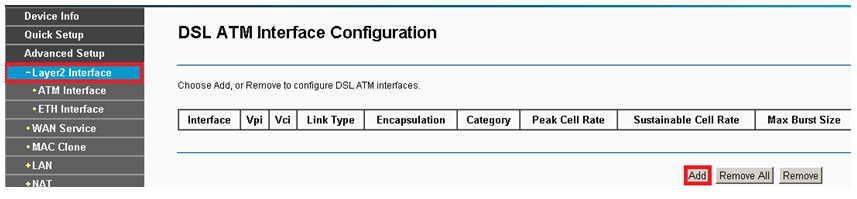
5.2. Enter the following and click Save/Apply, you will be taken to another screen to confirm.
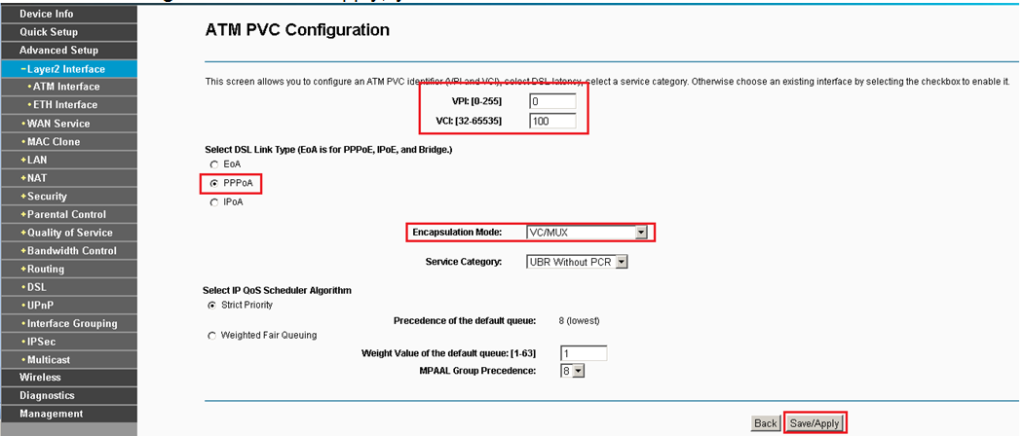
6. Go back to WAN Service
7. Click Add

8. Click next
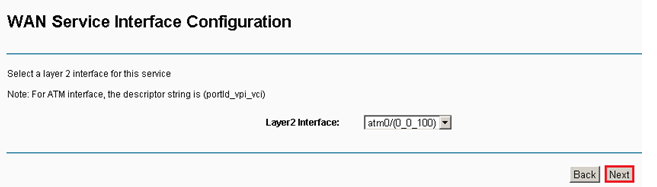
9. Match the settings with the below, replacing the username and password with your credentials.
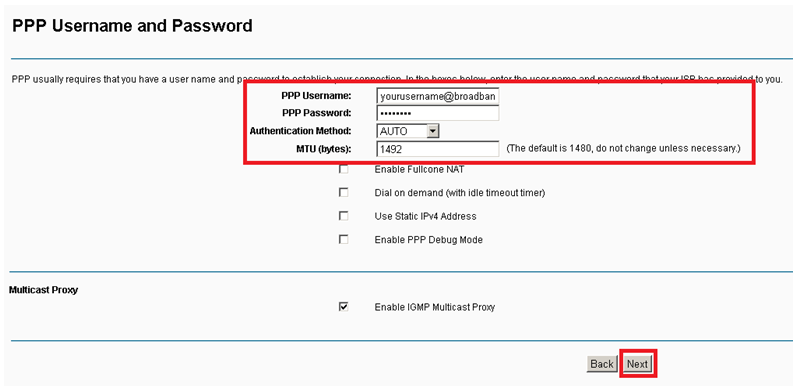
10. Click next
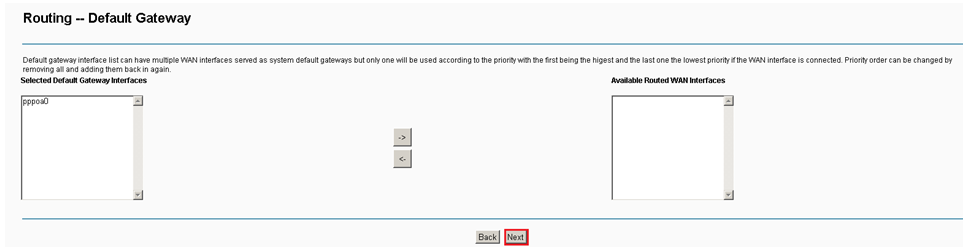
11. Click next
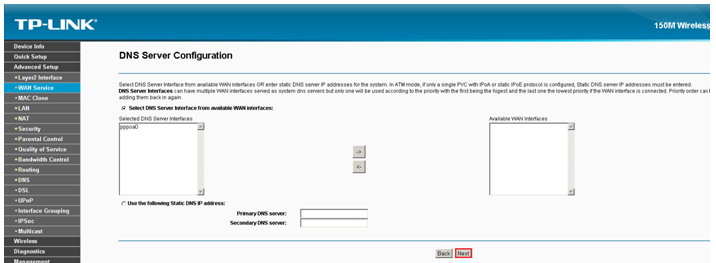
12. Click Save/Apply
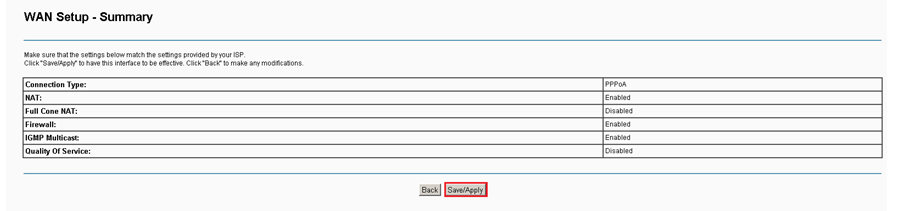
CONFIGURING TP-LINK TD-W8960ND
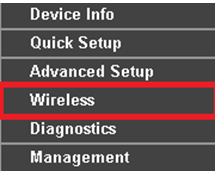
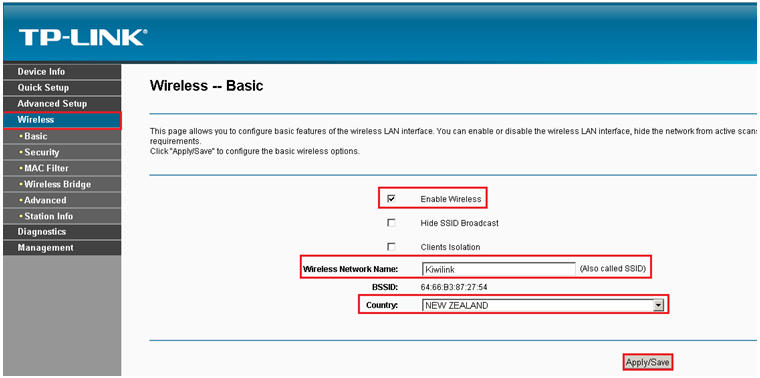
1. Click Wireless
2. Fill in the below
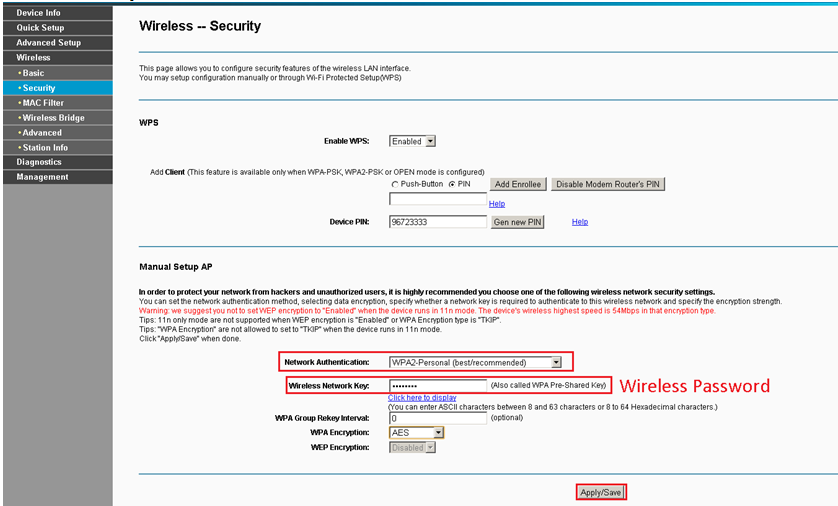
3. Click Security on the sidebar.
BUNDLE PLAN TERMS AND CONDITIONS: Price exclusive of GST. No term contracts, 30-day notice period applies Set up costs may apply depending on type of internet available. Hardware not included. View more…